
Tunables
Tunables enable adjustments to node parameters while the deployment is running, eliminating the need to edit flows or restart the system. This allows continuous operation and provides customers with real-time control while offering technicians enhanced testing capabilities.
Use cases
Tunables can streamline processes by allowing real-time adjustments without interrupting workflows. Here are some examples of how tunables can be utilized:
Image Cropping: Modify the crop boundaries on an image.
Polygon Manipulation: Reshape polygons on an image as needed.
Value Tweaking: Adjust the sensitivity of thresholds to see more or fewer items classified as a defect.
Toggle Features: Enable or disable specific functions by linking tunables to boolean nodes, such as the "Switch" node, to activate or deactivate features as needed.
These examples illustrate how tunables allow you to make quick changes and maintain workflow efficiency.
Tunable types
Tunables are designed to modify the values of specific nodes within a processing flow. These values include:
Boolean: Toggle between true/false states
Number: Decimal number values
Integer: Whole number values
String: Text-based inputs
Mapping: Converts input values to outputs based on the configuration. For example:
An input value of
ProductCode123(String) could output the storage bin number45(Integer).An input of
Detection=true(Boolean) could generate a warning message: "Defect detected" (String).
ㅤ
ㅤ
ㅤ
You can also use the CODE tab to enter the values in JSON format.
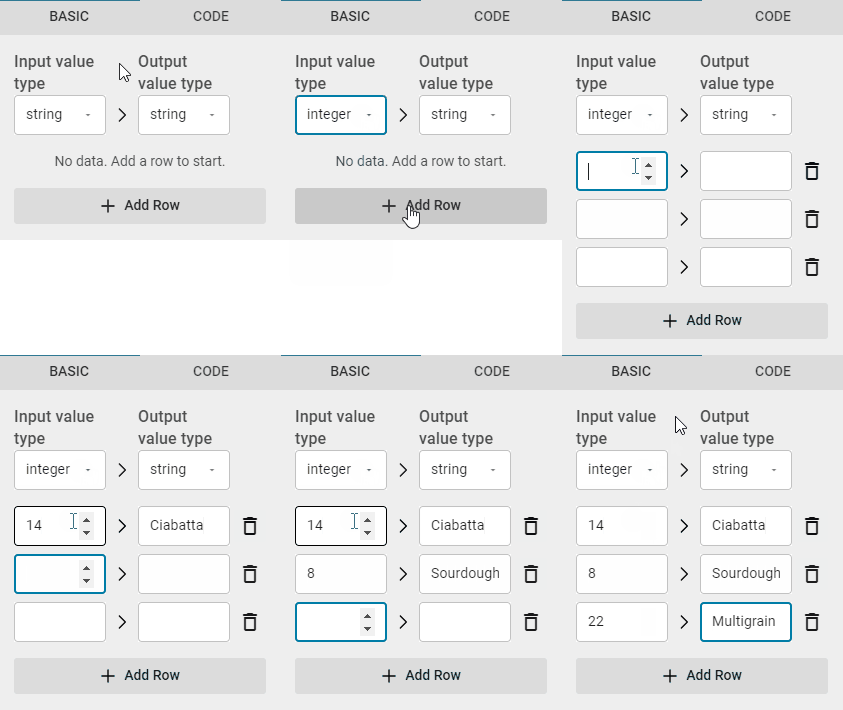
Mapping inputs to outputs
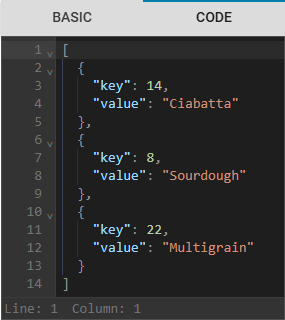
Mapping values in code format
Supported nodes
Tunables are available for a specific set of Nodes.
You can find the list of supported nodes and their corresponding value types below.
Number
Compare Value
Crop
Extract ROI
Face Orientation
Heatmap Threshold
Hold
Interval Filter
Polygon Threshold
Timer
Track Objects
Undistort Image
Integer
Annotate Polygons
Compare Value
Consecutive Trigger
Counter
Crop
Custom Image
Draw Polygons
(only values 0, 90, 180, 270)Face Orientation
Number (Input)
Resize Image
Resize Polygons
Rotate Image
(only values 90, 180, 270)Track Objects
Boolean
AND, NAND, NOR, NOT, OR, and XOR
Face orientation
Switch
String
Compare Value
Text (Input)
Mapping
Custom Mapping
Dynamic Selector
Create a Tunable
To create a tunable, follow these steps:
Select Tunables in the left-side menu.
Click the Create tunable button.
Enter a descriptive name for the tunable, as it will be used as an identifier in different parts of the application.
Select the appropriate value type:
Boolean: Toggles between true/false state.
Number: Numbers that support decimals.
Integer: Whole numbers.
String: Any text, like words or symbols.
Mapping: Converts values to outputs based on the configuration

The value types for Mapping tunables are not validated. Make sure that the tunable type matches the node configuration type; e.g., if you create a tunable that maps string > number, the node linked to this tunable must also map string > number.
Enter a value based on your selected value type.
This value is only used as the default and can be modified on the live Dynamic Settings page.
This value overrides whatever you configure in the node.
Click Save.

All created tunables must be linked to a node. The live settings page will not function properly if any tunable remains unlinked.
Connect Tunables to Nodes
Tunables need to be linked to specific nodes within Deployments.
Ensure that a flow with relevant nodes has already been created in the Flow Builder before proceeding.
To connect tunables to nodes:
Click Deployments in the navigation bar.
(Optional) Create a deployment if one does not already exist.
Click Configure to set up the deployment. Refer to the Deployments manual for detailed specifications.
Once the Deployment is ready, click the Tunables tab.
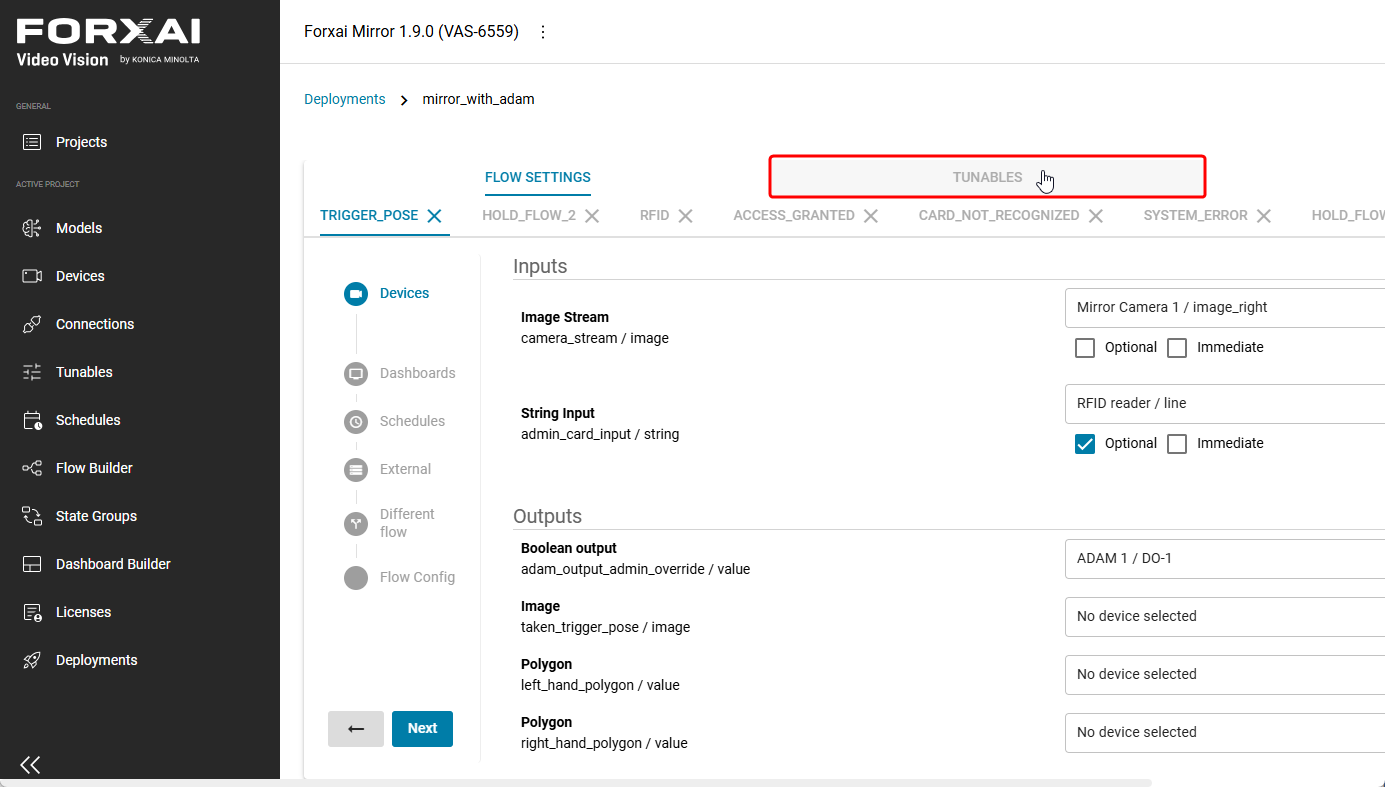
Click Connect to node value next to the relevant tunable.

Each tunable can be mapped to multiple nodes, and multiple tunables can be mapped to a single node.
Select the flow containing the node you wish to connect.
Choose the desired node.
Select the property to map between the tunable and the node.
Click Save.
Dynamic Settings
The Dynamic Settings page allows you to adjust and control tunable parameters in real-time while monitoring their effects.
Access the live Dynamic Settings page by adding
/settingsto the end of your FORXAI server address in your browser.

On the page, you will see an overview of all available settings and their configurable values,
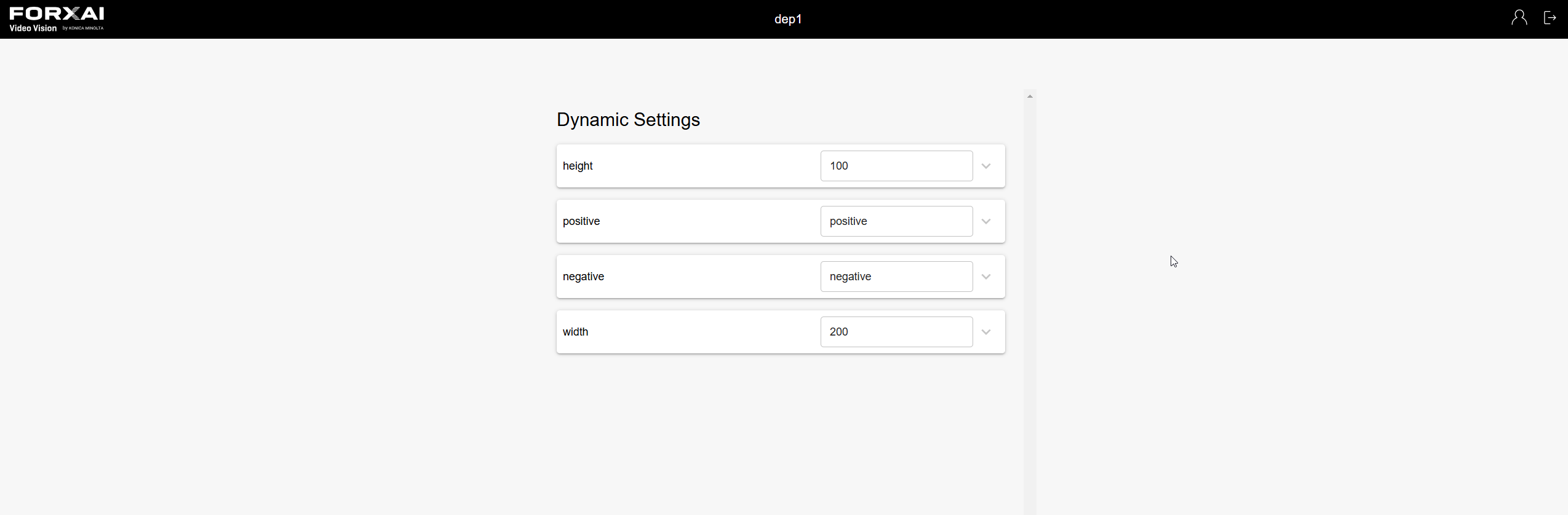
Dynamic Settings overview page
Update the values based on your requirements.
The application does not validate entered values. For example, if a node expects a value in the 0–1 range and you input 2.6, the system will fail to process it correctly.
Monitor the changes in real-time by watching the dashboard as you adjust the settings.
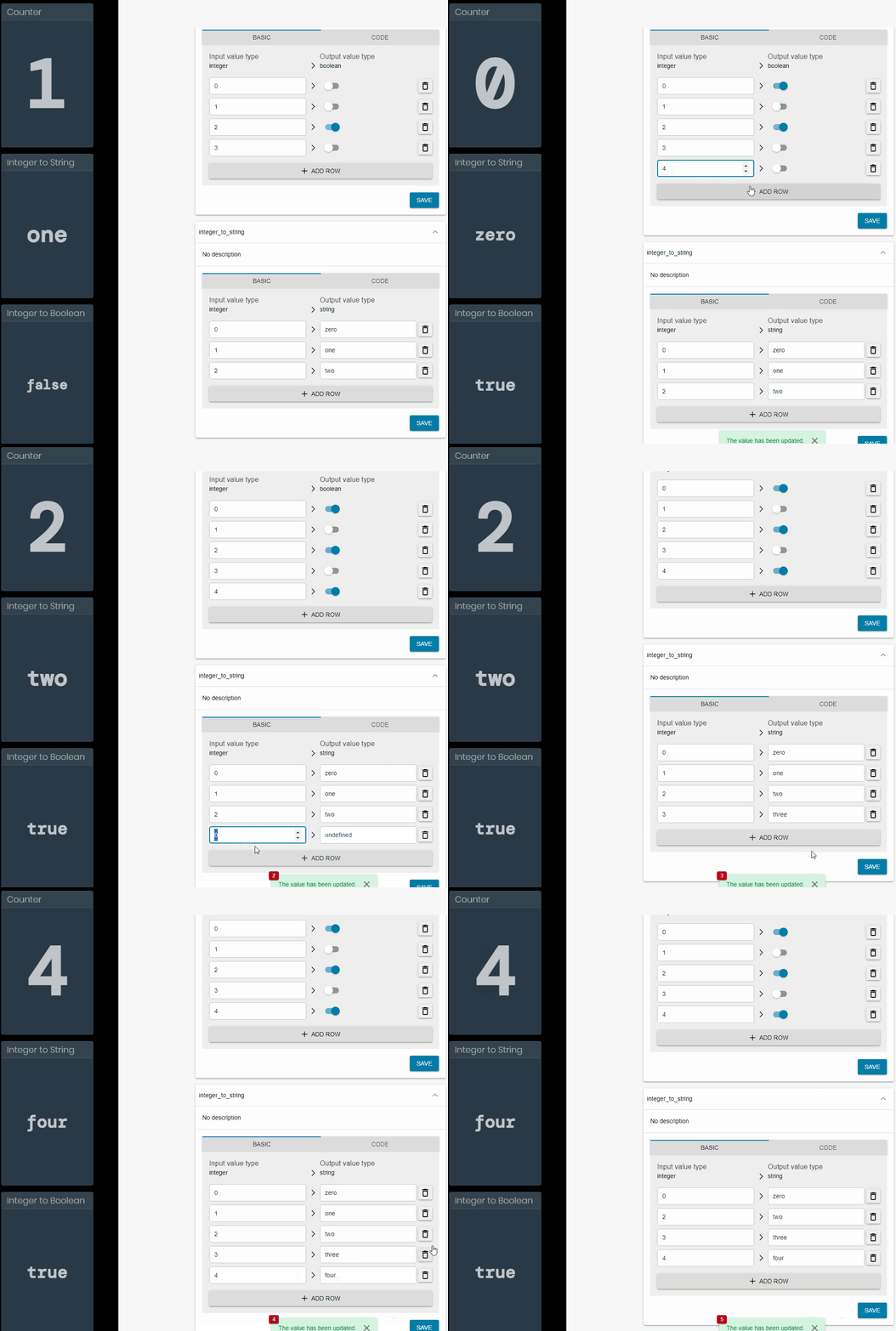
Dynamic settings affecting the dashboard in real-time