Schedules
The Schedules feature allows users to create and manage events that occur at specified times over custom time periods. This system defines when and how often events should take place, ensuring that tasks are performed automatically according to the set schedule.

Schedules are designed for setting long-term, recurring events at specific times. If you need an event to occur based on a trigger or specific condition, please use the Timer node instead.
Functionality
The Schedules feature enables users to configure a variety of scheduling options for their events. Users can define the frequency, specific days, and time periods during which events should occur. Key capabilities include:
Daily Schedules: Set events to occur every day or every nth day.
Weekly Schedules: Schedule events on specific days of the week (e.g., every Tuesday and Thursday).
Configuration Options
Users can customize schedules with the following parameters:
Start Date: The specific day when the event should begin.
End Date: The specific day when the event should end (if applicable).
Frequency: The interval at which the event repeats (daily, weekly).
Duration: The length of time the schedule is active (e.g., for one year, indefinitely).
Specific Days: Choose specific days of the week for the event to occur.
Create a schedule
To create a new schedule, perform the following steps:
Click the Create schedule button.
Enter a name for the schedule.
Select a name that’s easy to identify, as it will be used later in the setup.
Enter the Start and End date for the schedule.
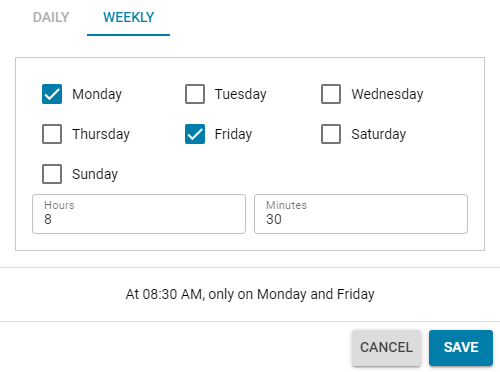
Select on which days and time of day you want the schedule to occur.
Example: If you need a schedule to run every Monday and Friday at 8:30 AM, select the Weekly tab, then select Monday and Friday, then enter 8 hours and 30 minutes.
Click Save.
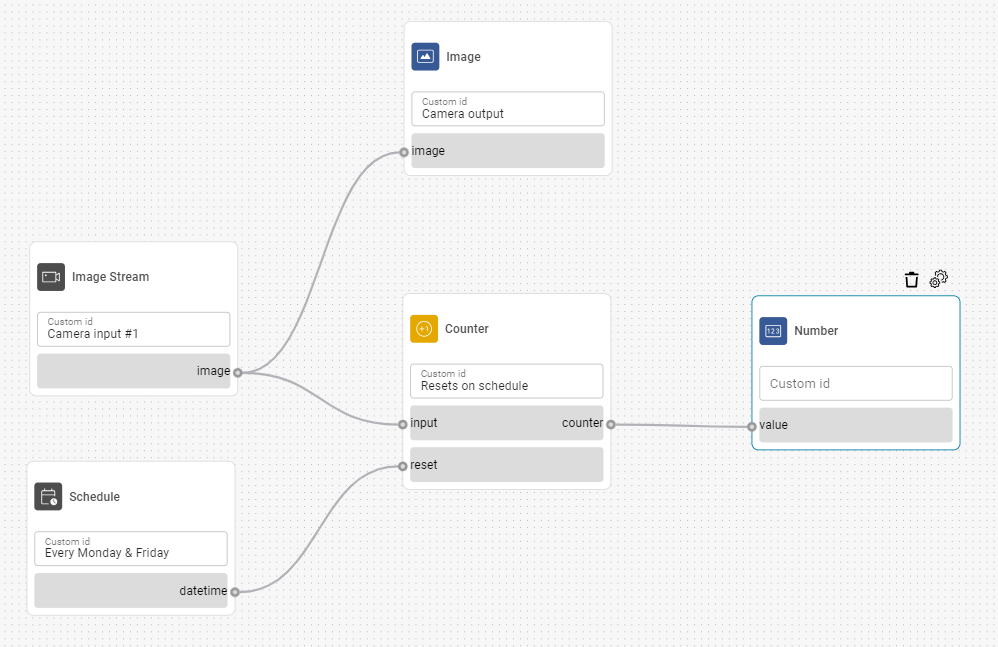
When you reach the Flow builder part of the setup, it’s important to place the Schedule node onto the canvas so it can be connected to a schedule in Deployments.