Reporting
Reporting enables users to review and analyze detection results, including defects, discrepancies, and inspection outcomes, in a detailed, organized format. It also allows for generating downloadable reports in CSV format, complete with associated images for analysis and record-keeping.
Prepare Reporting in the Flow Builder
In this section, you will configure the flow to capture and output data for reporting.
Follow these steps:
Select Flow Builder in the left panel.
Configure the flow as you normally would to process images and generate detection outputs. Refer to the Flow Builder guide for detailed specifications.

Reporting only supports the following Output value types:
String
Number
Boolean
Image
Make sure to label all Output nodes to easily identify them later.
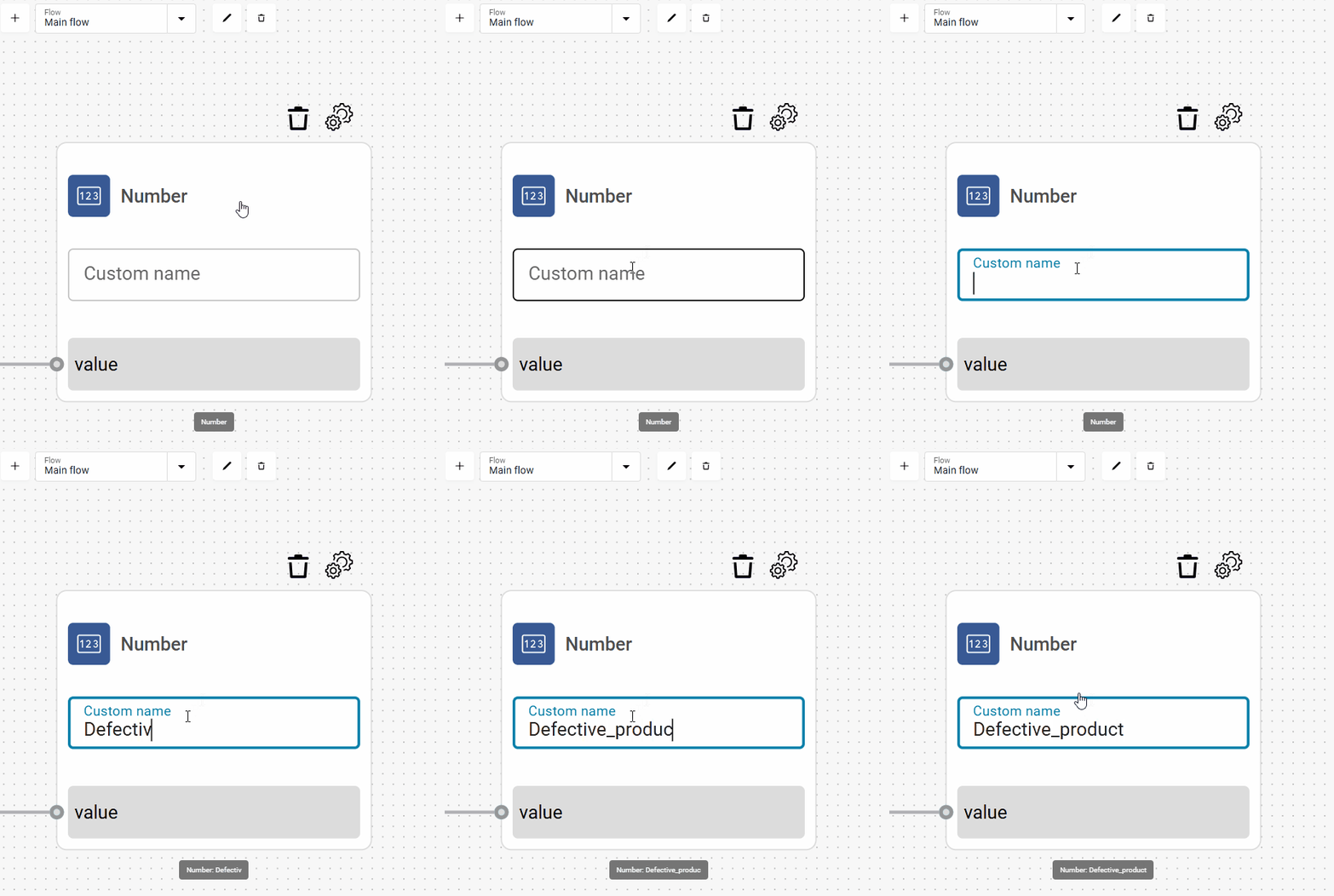
Custom label example
Click Save to confirm any changes.
Capture Flow node
To capture flow outputs under specific conditions, use the Capture Flow node.
When this node receives a True boolean signal, it records data from all Output nodes in the flow, provided those nodes are marked for reporting in the Deployment settings. If the received signal is False or absent, none of the selected outputs are stored.
For example, you can collect flow data only when specific conditions are met, such as detecting a defect or exceeding a certain value threshold.

The Capture Flow node only captures outputs that are selected in the Deployment configuration.
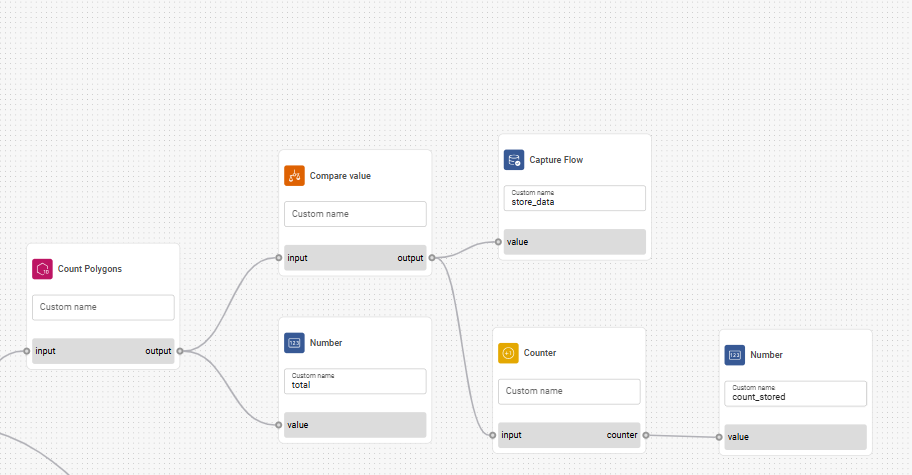
Example of a flow using the Capture Flow node
Set Up Reporting
This section describes how to set up Reporting, which outputs are to be included in the reports, and how to set the retention period for the data.
Reporting can only be configured after you already have a flow set up with relevant output nodes.
Follow these steps:
Select Deployments in the left panel.
Click Create Deployment.
Click the Enable reporting checkbox.
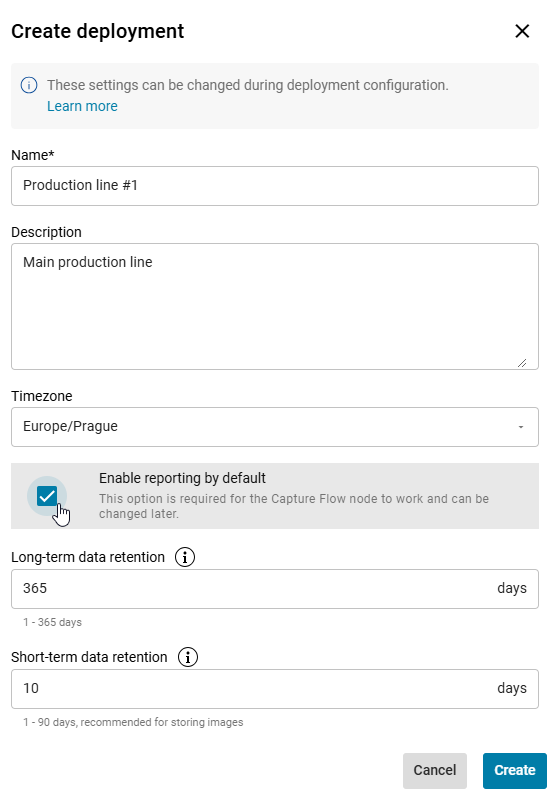
(Optional) Set the short-term and long-term data retention period.
Use long-term retention for compact data, such as text or numbers. Reserve short-term retention for image files, which take up significantly more space.
You will assign short-term and long-term storage to specific items during Deployment configuration.

Once the retention period ends, data is permanently deleted and cannot be recovered.
Continue with the Deployment setup.
Click the Reporting tab in Deployments.
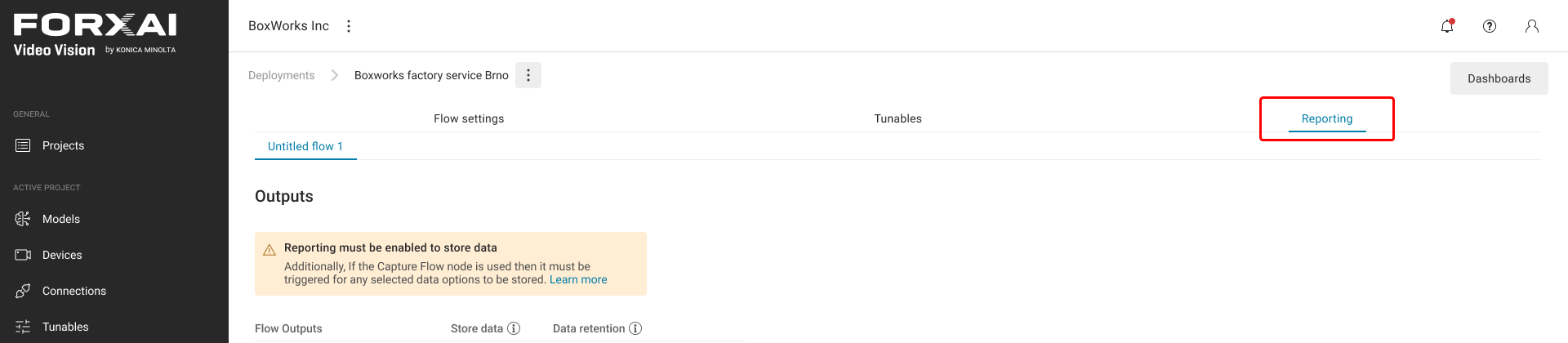
Select which outputs you want to store by clicking the checkbox in the Store data column.
Set which outputs are to be saved for long-term or short-term retention period.
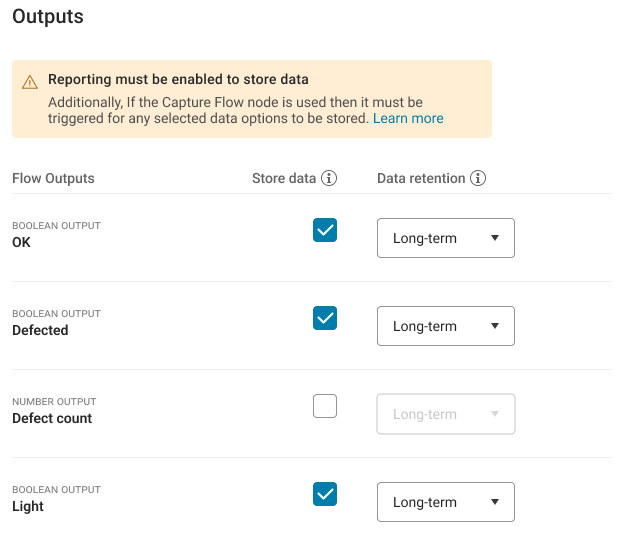
Only one image output can be selected for reporting at a time.
Click Done to confirm your changes.
How to access Reports
Once reporting is enabled and data is collected, you can access the Reports section to review detections and generate downloadable reports.
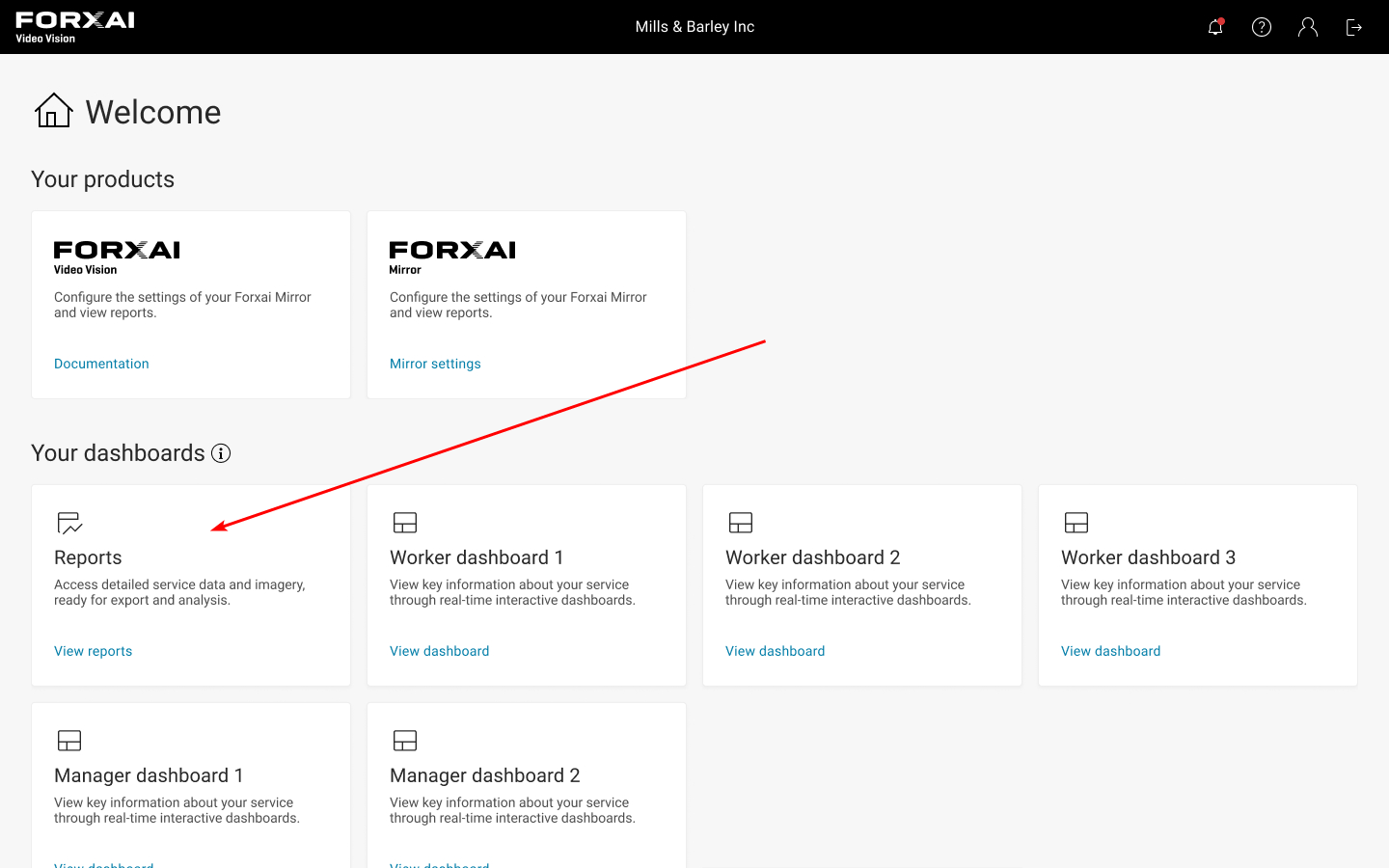
You can access Reports on the homepage by clicking the Reports tile.
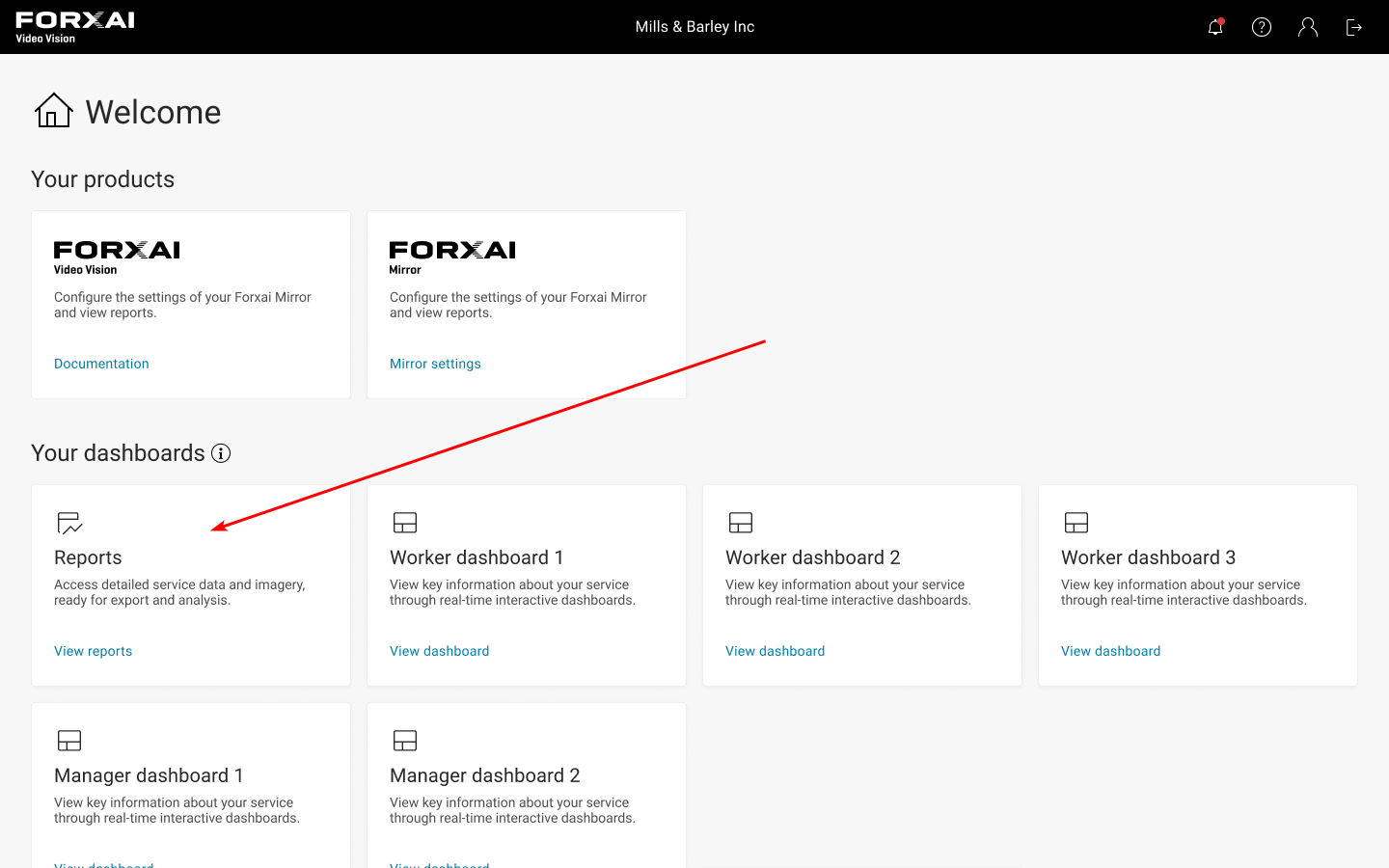
Reports tile on the homepage
Reporting overview
The Reporting overview displays the most recent detections and detailed data collected from the configured flows.
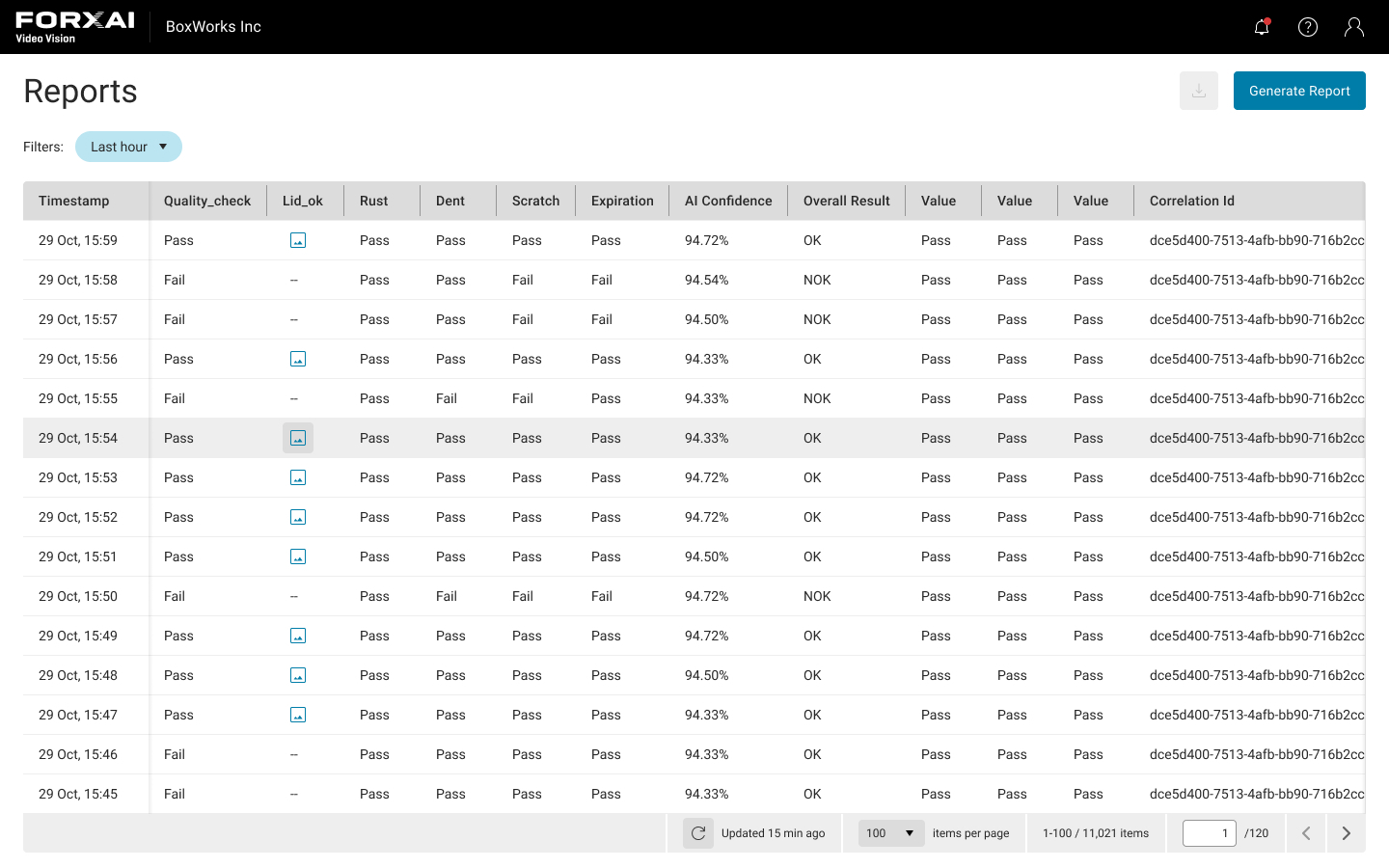
Overview of the Reporting page
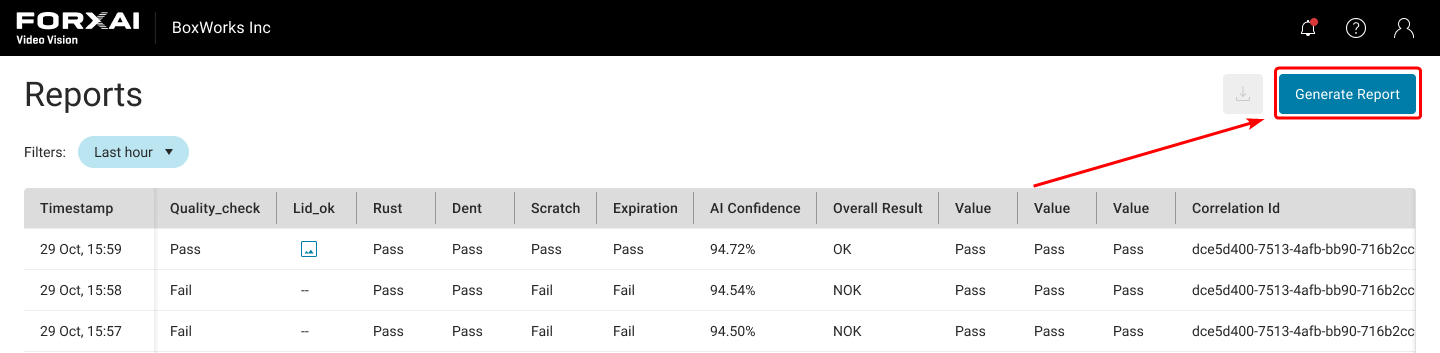
The Reporting overview displays detailed records of detections, including columns such as defect types, AI confidence scores, and overall inspection results. This data helps you quickly review and analyze detection performance.
Most columns in the Report correspond directly to the outputs from the configured flow. Additional columns provide supplementary details:
Timestamp - Displays the exact time when the data was stored in the Reporting system.
Correlation ID - A unique identifier assigned for each detection, used to trace and link related events or outputs within the system. For example, if a detection goes through multiple processing steps (e.g., image analysis, defect detection), the Correlation ID ensures that all those steps can be linked back to the same detection event.
In case of any issues, the Correlation ID can be shared with support to assist in identifying and resolving the problem.
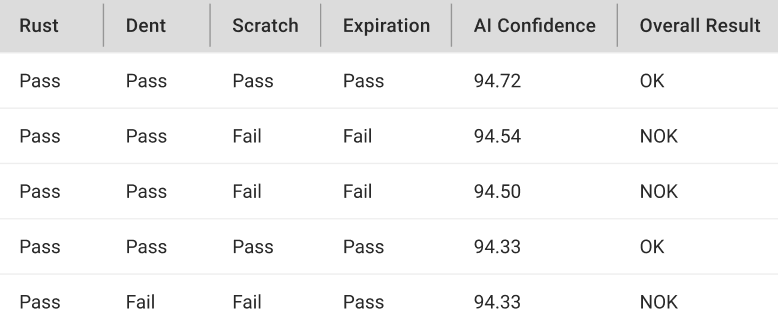
Preview and Download images
You can preview individual images by clicking the image icon. Once the preview is opened, you can download the image.
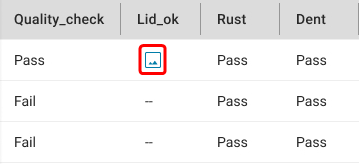
Image preview icon
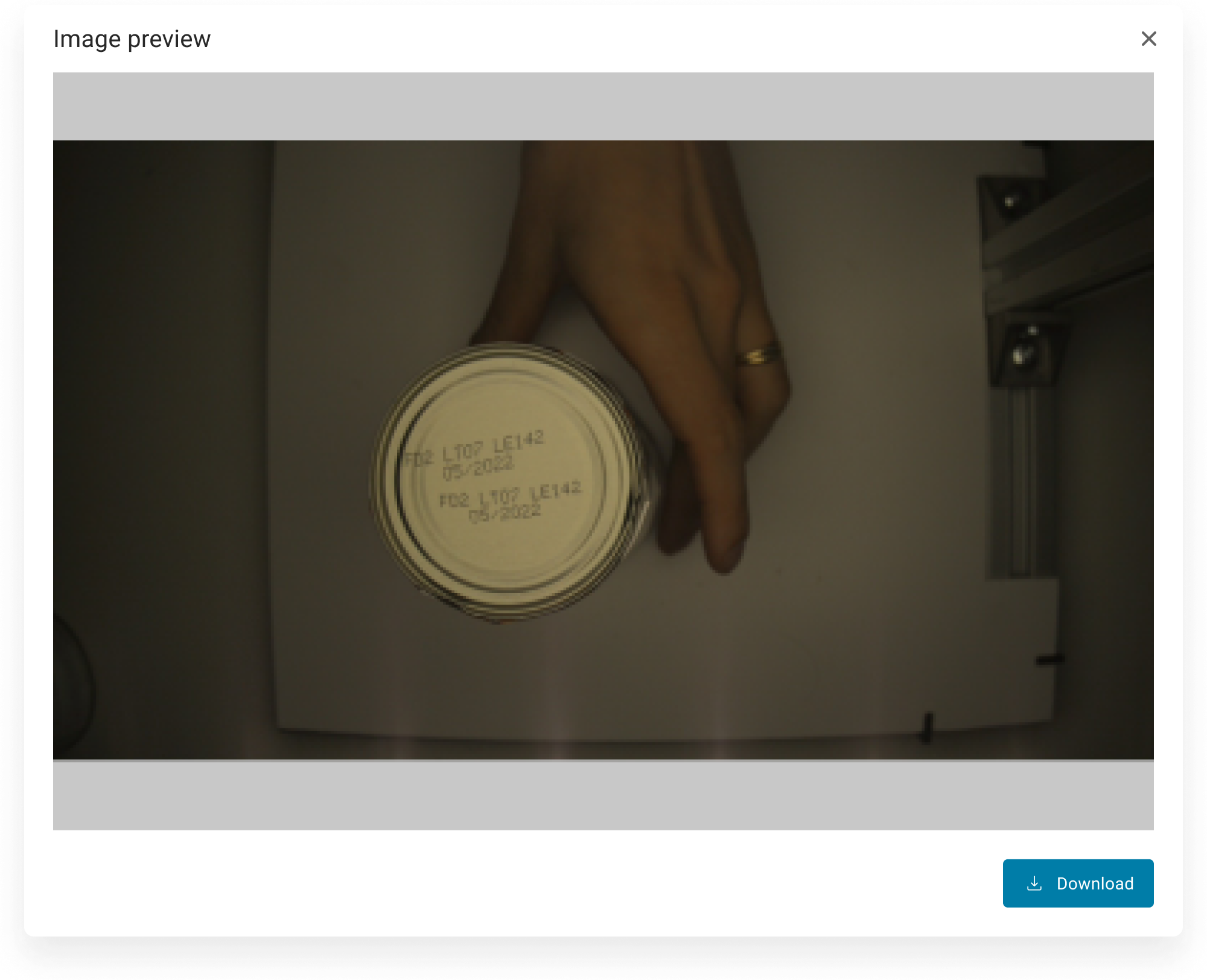
Image preview with download button
Image preview is used to download single images. To download all images, generate a full report.
Generate report
Reports can be generated and downloaded in CSV format, optionally including images. This section explains how to create a new report.
To generate and download a report of all the collected data, follow these steps:
Go to the FORXAI homepage.
Click the Reports tile.
Click the Generate Report button.
(Optional) To include images in the generated report, select the Include images checkbox.
Click Generate.
Report generation can impact the performance of the application. For optimal results, perform this task outside production hours.
Wait for the report to be generated. This can take several minutes.
Once the report is generated, click the
 download button.
All generated reports expire after 24 hours.
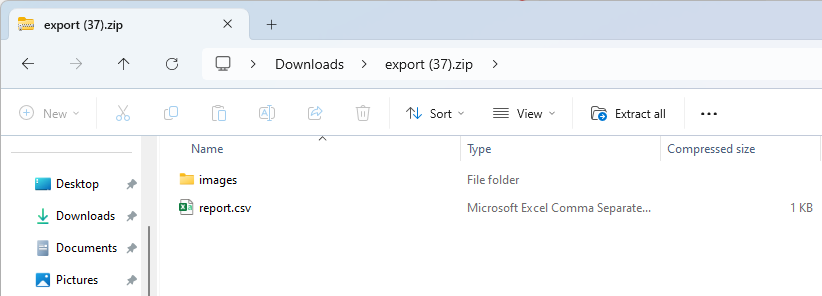
The report will download as a .zip file, which includes a .csv file with the records and, optionally, all images in SVG format.