
Basler GigE Camera
This page provides instructions for setting up and using the Basler GigE camera within the platform. The Basler camera is an industry-standard, high-performance industrial camera that offers exceptional image quality and flexibility for computer vision applications.
Supported models
The only supported model is the Basler ace 2 a2A3840-13gcBAS.

Currently, the only supported interface is GigE. USB3 connections are not supported.
Benefits and use cases
The Basler GigE camera is well-suited for a variety of use cases in computer vision, including:
High image quality: Captures uncompressed images, ensuring no loss of detail.
Industry standard: Widely used in industrial and research applications, ensuring reliability and compatibility.
Hardware trigger support: Allows precise frame capture timing for specific events.
Adjustable shutter speed: Offers precise control over exposure time in microsecond increments, allowing optimization for various lighting conditions and applications, such as capturing detailed images in high-speed industrial processes or low-light environments.
GigE interface: Enables high-speed data transfer over standard Ethernet connections.
Connect the Basler camera to the network
This section explains how to properly connect a Basler GigE camera to your network to ensure it works reliably with your system.
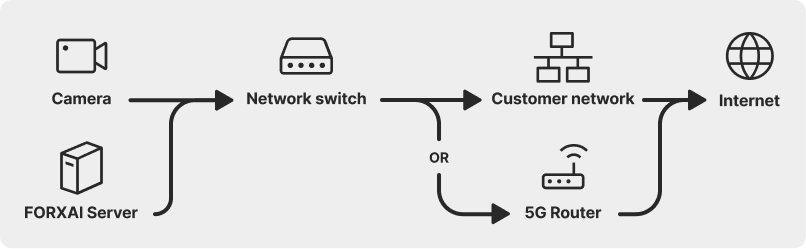
Connection options overview

Basler cameras cannot operate when connected through routers or VPNs. Their high-performance nature and reliance on the GigE Vision protocol require a direct, low-latency connection.
When setting up the Basler GigE camera, it's important to establish a stable connection to your system. Follow these guidelines to ensure proper connectivity:
Direct connection to a server or industrial switch
We recommend connecting the camera directly to your server or a high-quality industrial-grade Gigabit Ethernet network switch. Avoid using standard consumer-grade routers or switches, as they may introduce latency or bandwidth limitations unsuitable for high-performance applications.Power over Ethernet (PoE) support
If your Basler camera supports Power over Ethernet (PoE), ensure that your network switch or Ethernet port supports PoE to power the device without an external adapter.IP address configuration
Configuring the address on the camera is done through the Basler pylon Viewer.
The Basler camera supports only one active connection at a time. You cannot connect to or configure the camera in the pylon Viewer while a deployment is running, and similarly, you cannot run a deployment while the camera is connected to the pylon Viewer.
Assigning a static IP address to the camera is recommended as a best practice. This ensures that the camera's address remains fixed, simplifying system integration and troubleshooting.
If a static IP is not feasible, the camera can be assigned an IP address using a customer-managed DHCP server, provided the IP remains reserved for the camera to prevent changes during operation.
Dynamic IP assignment is not supported.
Gigabit ethernet cable
Use a high-quality Gigabit ethernet cable (Cat5e or Cat6) to ensure optimal data transfer speeds and avoid signal degradation.
Configure the server IP address
To enable communication between the server and the camera, you must add the server IP address to the server’s configuration file.
Follow these steps:
Connect to the server using a terminal application:
CODEssh vasadmin@x.x.x.x
Enter the password
vasadminwhen prompted.Switch to root privileges:
CODEsudo -iSwitch to the following folder:
CODEcd /srv/compose/shinanoEdit the shinano.env file using the vi editor:
CODEvi shinano.envPress
Ito edit the file as follows:Use arrow keys to navigate to the line that says
#GIGE_HOST.
Remove the hash sign
#.Replace the
<your-physical-machine-IP>with the server IP address.
Edited line example
Type
:xand pressEnterto save and exit.
In the Terminal, use the following command to relaunch the application with the changes:
CODEdocker compose up -d
Add the Basler camera to the platform
To add a Basler camera to the system, follow these steps:
Go to Devices and click Add device.
Select the Basler™ GigE Camera device type.
Fill in the remaining fields as follows:
Device name
A user-defined label for the camera.IP address
The unique IP address of the camera.
How do I find the camera IP address?Image queue size
Defines the number of images the camera can store in its buffer before processing. A larger queue size may be useful in high-frame-rate scenarios to avoid data loss.Pixel format
• Mono8: Captures grayscale images with 8-bit depth, suitable for applications requiring high contrast.
• BGR8: Captures color images with 8-bit depth for each color channel, ideal for applications needing detailed color information.Acquisition mode
• Continuous: The camera sends every frame it captures in real time.
• Hardware triggered: The camera waits for external trigger signals to capture frames.Hardware trigger source (only applies to Hardware Triggered Acquisition mode)
Specifies the source of the hardware trigger signal. Refer to the Hardware trigger setup procedure.
Click Add to save the device.
To find the camera IP address, follow these steps:
Make sure the camera is connected to the network.
Connect your PC to the same network as the camera.
Open the pylon Viewer.
Find your camera in the top left section and hover your mouse over it.
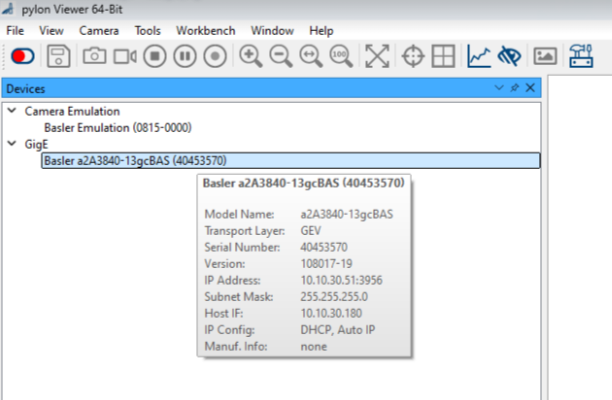
The address can be found next to the IP Address label.
Setting up a hardware trigger
This section explains how to configure a hardware trigger for Basler ace 2 cameras.
To set up a hardware trigger, follow these steps:
Connect the Basler Power-I/O Cable to the camera and to the Hardware trigger.
Make sure to use the General purpose lines based on the following information:
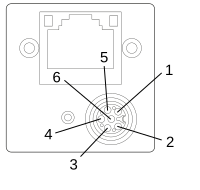
Cable connector pinout
Pin | Wire Color | Line | Function |
|---|---|---|---|
1 | Brown | - | 12–24 VDC camera power |
2 | White | Line 1 | Opto-coupled I/O input line |
3 | Blue | - | Ground for opto-coupled I/O lines |
4 | Black | Line 2 | General purpose I/O (GPIO) line |
5 | Gray | Line 3 | General purpose I/O (GPIO) line |
6 | Pink | - | Ground for camera power and General Purpose I/O (GPIO) lines |
Select the appropriate hardware trigger source when adding the camera to the platform.
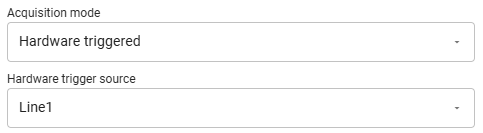
Connect the hardware trigger:
Physically connect your external trigger device to the selected input line on the camera.
Ensure the signal levels and timing are compatible with the camera's specifications (refer to the Basler camera hardware manual for supported voltage and timing ranges).
Verify trigger functionality:
Test the setup by activating the external trigger and observing if the camera captures images as expected.