
Server setup
This article describes how to set up and prepare the customer server for deployment.
Prepare the bootable USB drive
Prerequisites
Complete the following prerequisites:
Verify that your USB drive has a capacity of at least 4 GB.
Back up any data you have on the USB drive.
(As applicable) Verify that the Ubuntu version installed on your USB drive is currently supported.

This prerequisite applies when you are using a previously prepared drive
Create a Bootable USB Drive on Windows
Launch the downloaded file.
Use the wizard to install the application.
The installation completes, and the application launches automatically.Insert the prepared USB drive into your computer.
Click Flash from URL, then enter the following URL:
CODEhttps://releases.ubuntu.com/22.04.4/ubuntu-22.04.4-live-server-amd64.isoClick Select target.
Select the prepared USB drive, and click Select.
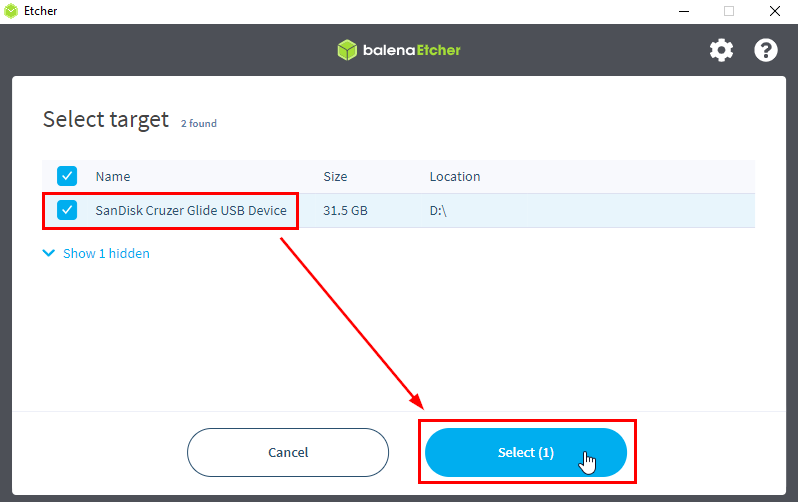
Click Flash!
Wait until the Flashing and Validating processes are complete.
Your bootable USB drive is ready to use.
Ubuntu installation
Video Vision software runs on Ubuntu. This article explains how to install Ubuntu on the customer server.
Boot from the flash drive
Boot the server with the prepared Ubuntu USB drive to start the installation process.
Follow these steps:
Connect the Ubuntu USB drive to the server.
Turn on the server, wait for the boot screen to appear, and then press F11.
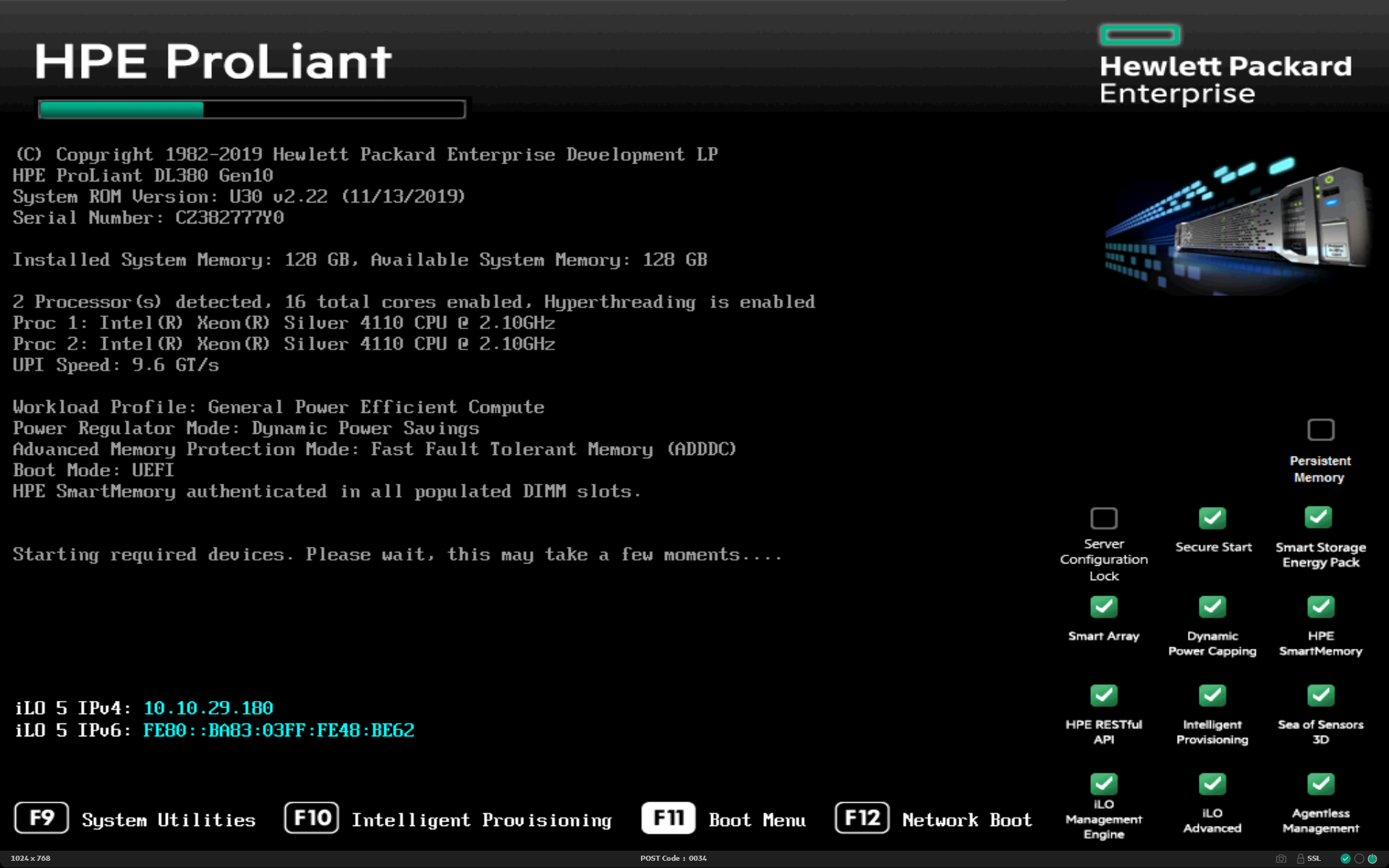
Boot screen
Select Generic USB Boot and press Enter.
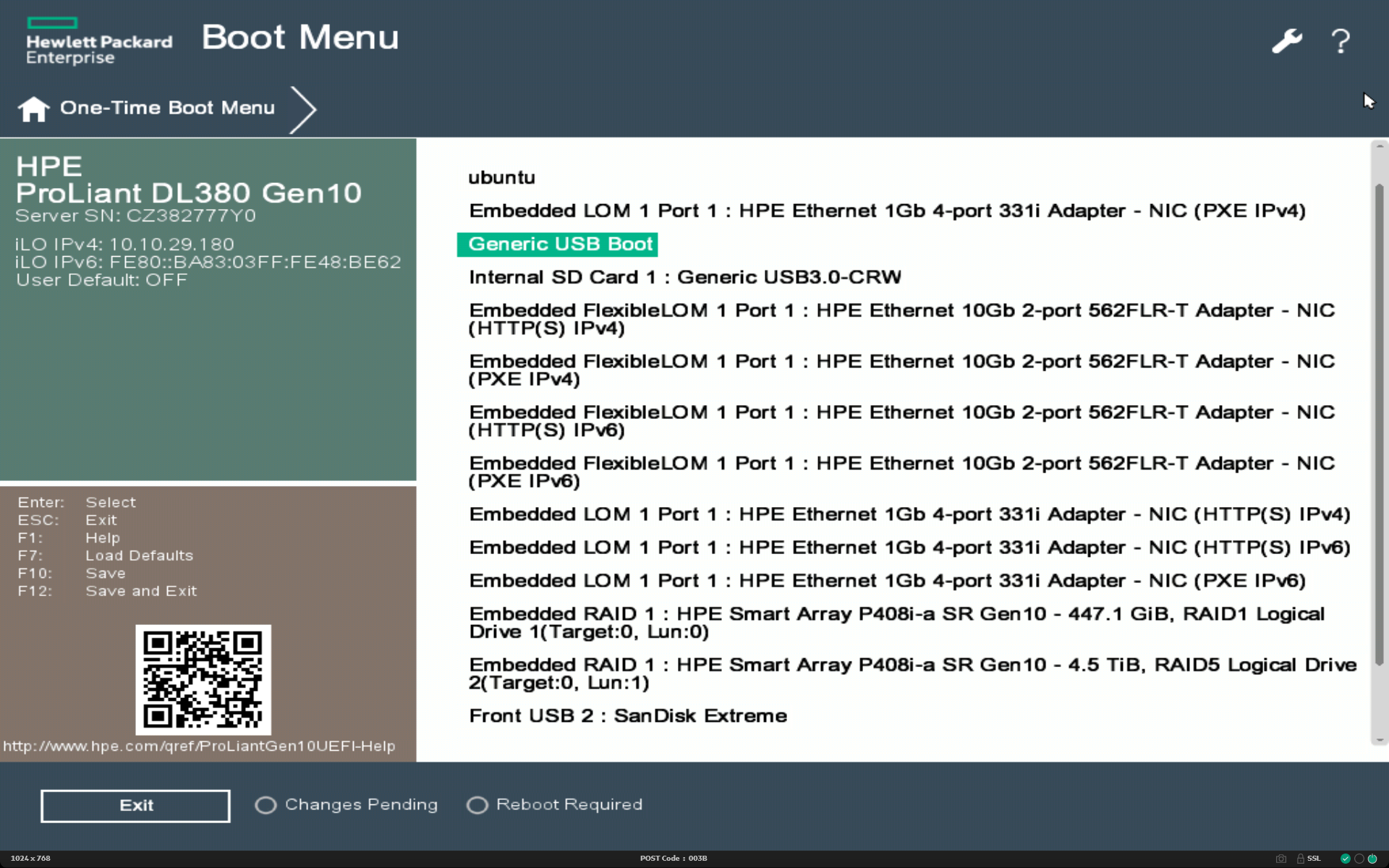
The selection screen appears, and the installation begins.
Complete the Ubuntu installation
You can install the Video Vision software only after you complete the Ubuntu installation.
Use the ↑ and ↓ keys on your keyboard to make selections.
Follow these steps:
Select English (UK), then press Enter.
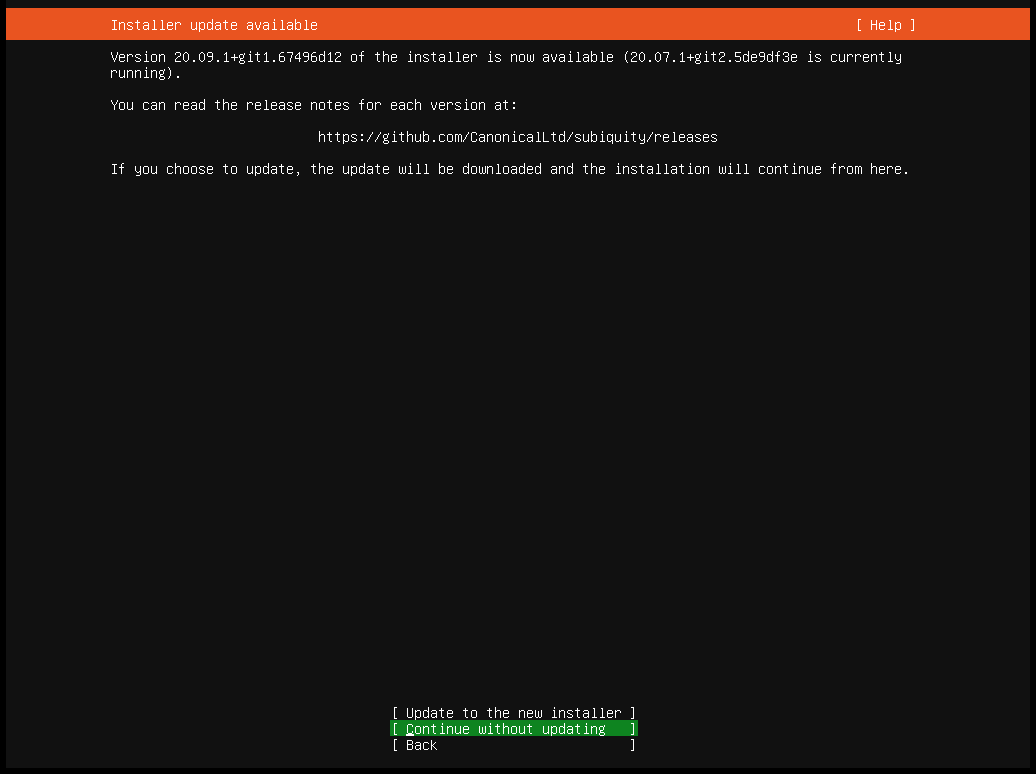
(As applicable) Select Continue without updating and press Enter.
This step applies when your version of the installer is outdated. Otherwise, the request does not appear.
Select your preferred keyboard settings, and then select Done.
The device automatically detects and configures the network connection. Wait until a network is detected, then select Done.

Do not proceed with the installation until a network has been detected.
(As applicable) Specify the proxy information in the following format:
HTMLhttp://<username>:<password>@<hostname>:<port-number>/username
(As required) Defines the user ID. This parameter is required if your proxy is protected by user credentials.password
(As required) The password that corresponds with username.hostname/port
The IP address/hostname and port of the proxy.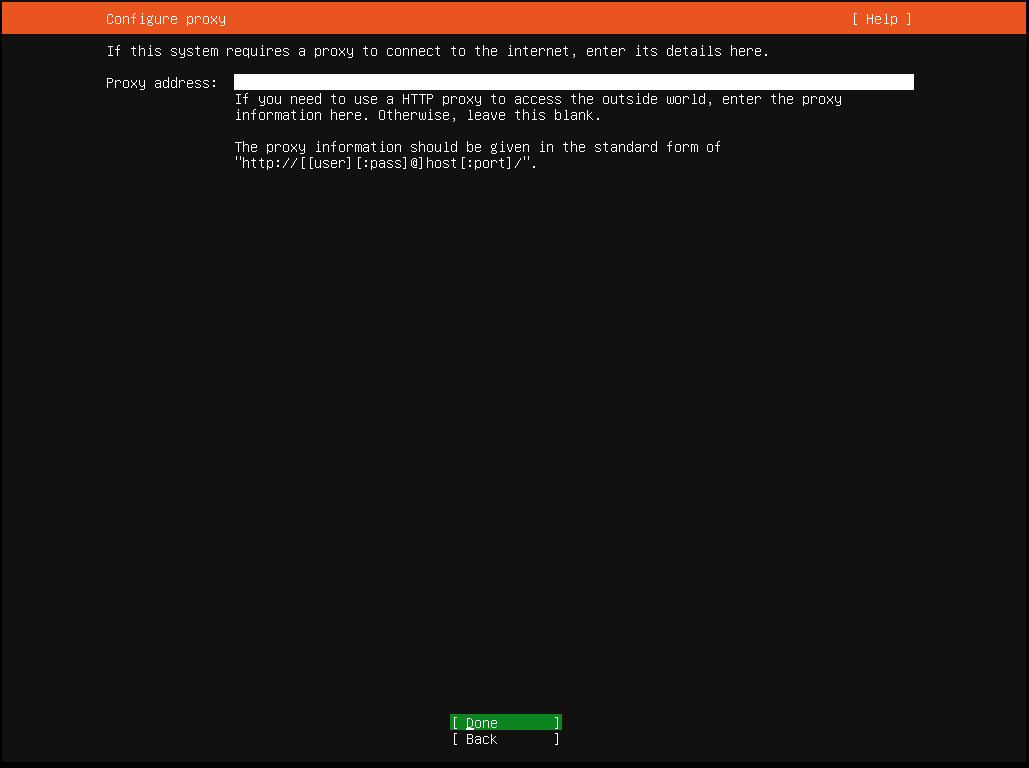
Select Done.
Keep the default mirror address and select Done.
Keep the default layout settings and select Done.
Verify the partition information and select Done.
Read the confirmation dialogue that pops up to ensure that you understand it, and then select Continue.
Specify the requested information as illustrated in the following example:
Your name: vasadmin
Your server’s name:
For the server name, follow the FORXAI Project naming scheme: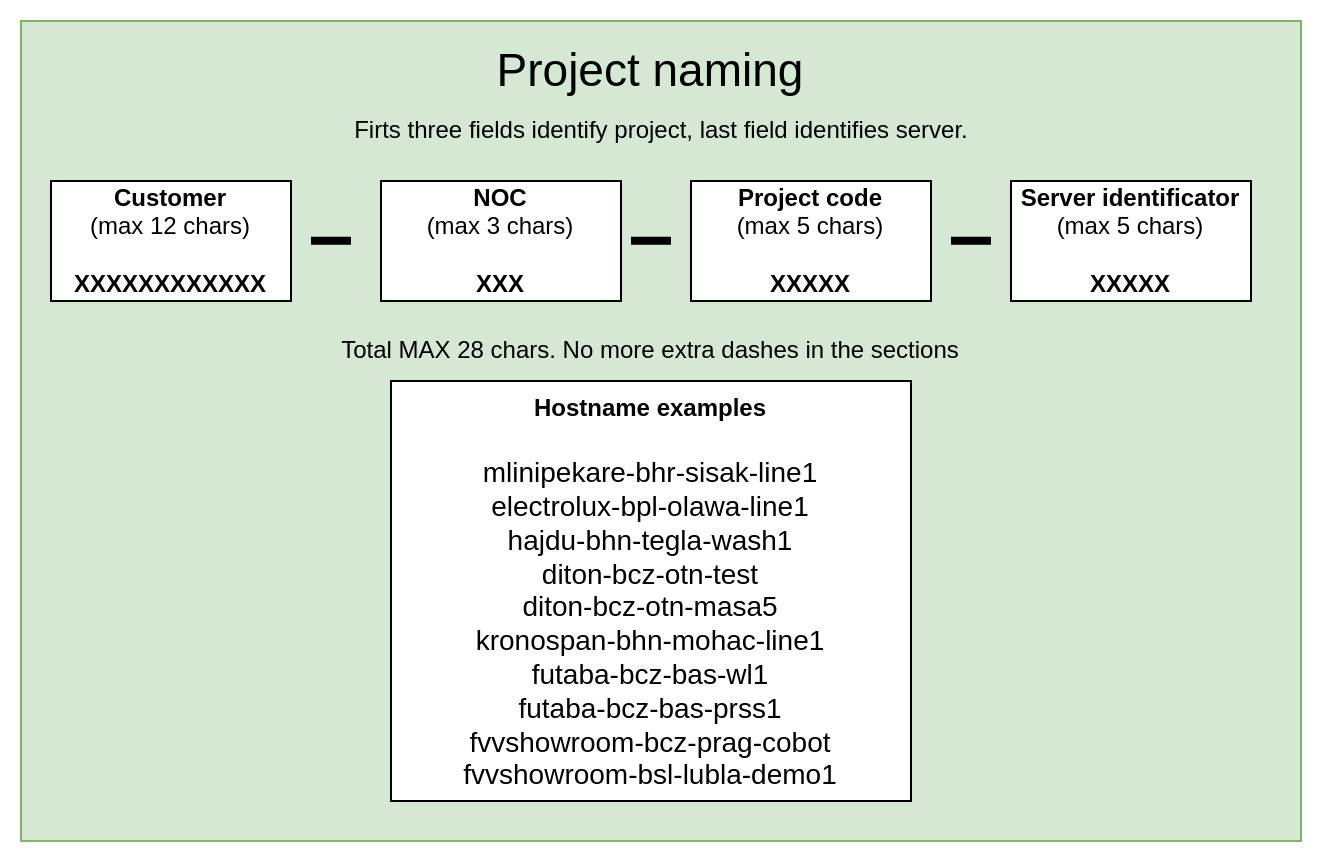
Pick a username: vasadmin
Choose a password: vasadmin
Confirm your password: Re-enter the password.Select Done.
Select Install OpenSSH server, and then select Done.
Keep the default server snap selections, and then select Done.
Wait for the installation and any updates to be completed.
Remove the USB drive from the server.
Select Reboot Now.
The server reboots, and the Ubuntu installation is complete.